Tantrum Audio

NEXUS User Manual

From a new box to a corrected pair of speakers, including where to put the mic. Written for firmware 0.0.23 and Omnissiah v0.1.5.

All chapters
Getting started
3

Quick start

Open page ↗

This chapter takes you from a new NEXUS to a corrected pair of speakers: wiring, placing the measurement microphone, setting levels, measuring, and applying the correction. Allow about 30 minutes, most of it for the first two steps.

Before you begin

The quick start covers a stereo pair on Output 1-2. If you have a subwoofer, finish the quick start with the pair first, then follow Chapter 8 — Outputs & crossovers to add the sub and measure again.

What you need

  • NEXUS and the supplied USB-C cable.
  • A computer with Omnissiah installed (step 1).
  • An audio interface.
  • A measurement microphone.
  • About 15 minutes of quiet in the room.

Setup in six steps

  1. A laptop with a download arrow on its screen
    1Install Omnissiah

    From tantrumaudio.co.uk/downloads/omnissiah.
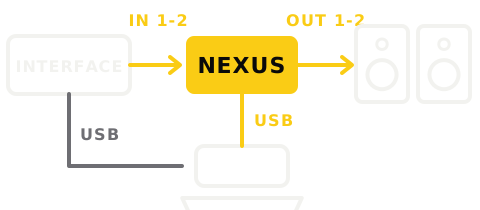
  2. Interface into NEXUS Input 1-2, NEXUS Output 1-2 to two speakers, NEXUS and the interface both connected to the computer
    2Wire it up

    Speakers down first. Interface line outs to Input 1-2, Output 1-2 to the speakers, UAC to the computer.
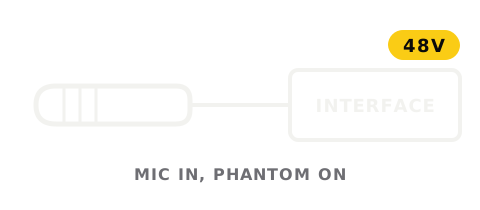
  3. A measurement microphone plugged into the interface with 48 V phantom power on
    3Plug in the mic

    Into your interface with 48 V on, never into NEXUS. Pick it in Settings > Audio.
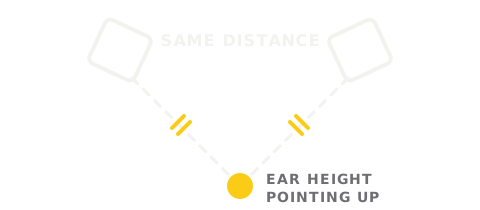
  4. Two speakers angled at the microphone, the same distance from each, at ear height pointing up
    4Place the mic

    Where your head goes when you listen, the same distance from each speaker.
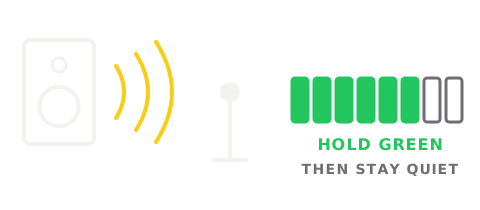
  5. A speaker playing to the microphone, with a level meter holding in the green
    5Measure

    Calibrate, Quick Measurement, Start. Raise the interface output until the meter holds green.
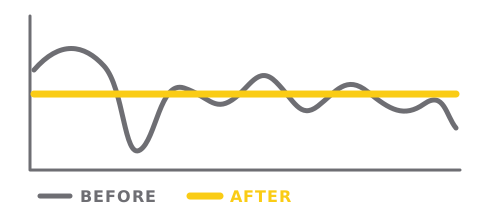
  6. A bumpy grey Before response and a flat yellow After response
    6Apply

    Compare Before and After, then Apply to device. To add a sub afterwards, see Chapter 8.

1. Install Omnissiah

Download Omnissiah from tantrumaudio.co.uk/downloads/omnissiah and install it. Omnissiah measures the room and sets up NEXUS.

2. Wire everything up

  1. 1Turn your speakers down, or off.
  2. 2Connect NEXUS Output 1-2 to your left and right speakers.
  3. 3Connect your interface's line outputs 1 and 2 to NEXUS Input 1-2. During measurement, Omnissiah plays test noise out of the interface and into NEXUS, and the microphone records through the same interface.
  4. 4Plug the measurement microphone into a mic input on the interface and switch on 48 V phantom power for that input. The microphone never plugs into NEXUS.
  5. 5Connect the UAC port on NEXUS to your computer with the supplied USB-C cable. The one cable carries audio, control and power.

The STATUS LED on the front glows red for a few seconds while NEXUS starts, then turns white.

Note

A fresh NEXUS sends every input to every output, so your interface also reaches Output 3. With nothing connected to Output 3, that makes no difference.

3. Check NEXUS in Omnissiah

  1. 1Open Omnissiah. NEXUS appears in the sidebar under Devices.
  2. 2If the device row shows a button Update to v…, a newer firmware is available. Turn your speakers off, click the button, then Speakers are off, update. Wait for Update Complete before you continue.

If NEXUS does not appear, see Chapter 9 — Troubleshooting.

4. Choose your interface and microphone

The first time you click Calibrate, Omnissiah shows Device Setup Required with the same settings as Settings → Audio. Set them in either place.

  1. 1Under Audio Interface, set Output Device to your audio interface.
  2. 2Turn your speakers back up to a low listening level. Press and hold the Test output button for output 1: the left speaker should play noise. Hold output 2: the right speaker should play. If the wrong speaker plays, swap the leads at NEXUS Input 1-2.
  3. 3Under Measurement, set Mic to your interface and choose the channel the microphone is plugged into. Speak near the microphone and watch the Mic Level meter move.
  4. 4If your microphone came with a calibration file, click Import… next to Mic Calibration and choose the file. Most measurement mics come with two files, 0° and 90°. The quick start points the microphone at the ceiling, so import the 90° file.
  5. 5If Omnissiah showed Device Setup Required, click Apply.

5. Place the microphone

Omnissiah calculates the correction for the exact spot where the microphone stands, so this step decides how good the result is. The microphone goes where your head is when you listen.

  1. 1Move your chair out of the way. Put the mic stand where your head would be when you sit to listen or mix. A chair back right behind the microphone reflects sound into the measurement.
  2. 2Centre the microphone between the speakers. Measure from the front of each speaker to the microphone. The two distances should match to within 1 cm. Omnissiah sets the delays so sound from both speakers arrives together at the microphone, so an off-centre microphone sets them for the wrong spot.
  3. 3Set the height to your ears. Sit in your listening position, note the height of your ears from the floor, and set the microphone capsule to that height.
  4. 4Point the microphone at the ceiling, straight up, to match the 90° calibration file. If you have only a 0° file, point the microphone forward instead, at a spot halfway between the two speakers.
  5. 5Keep it clear. Leave at least 30 cm between the microphone and the desk surface, a wall or anything else large. Keep the stand and its cable out of the straight line from each speaker to the microphone.
  6. 6Fix it in place. Tighten the stand. Once measuring starts, the microphone must not move until the app tells you to move it.
Tip

Before measuring, switch off fans, air conditioning and anything else that hums. Close the door. A quiet room gives a cleaner measurement in less time.

6. Set up the measurement

  1. 1Click Calibrate in the sidebar.
  2. 2Under New measurement, keep Quick Measurement selected.
  3. 3Under System, choose Start from: Left + Right. Check that Left Speaker uses Output 1 and Right Speaker uses Output 2.
  4. 4Click Start Measurement.

The Speaker Playback About to Begin dialog opens. Leave the settings inside it as they are for a first measurement: the target curve is Tantrum Flat and Quick Positions is 1.

Watch out

The next step plays pink noise through your speakers. Start with the speakers or interface output turned well down. You raise the level in the next step, only as far as the meter asks.

Then click I'm Ready 🤘.

7. Set your levels

Omnissiah mutes the outputs, listens to the background noise in the room, then plays noise through the left speaker and asks you to raise it.

  1. 1Raise your interface output volume slowly while you watch the meter.
  2. 2Stop when the meter turns green and shows Level set — hold it steady. The level has to stay green for 5 seconds.
  3. 3Omnissiah moves on to the right speaker. The interface volume feeds both speakers, so the right speaker is usually green straight away. Leave the volume alone from here on.
  4. 4If the meter turns red and shows Too hot — lower your mic preamp gain, turn down the microphone gain on your interface, not the speaker level.
  5. 5When asked Happy with the levels in the room?, click Yes, continue.

Green means the noise is clearly louder than the background noise in the room, and loud enough at the microphone to measure well. The level is usually comfortable listening volume.

8. Measure

  1. 1Stay still and quiet, out of the line between the speakers and the microphone. Behind the mic stand works well.
  2. 2Omnissiah plays noise through each speaker in turn, a few seconds each, and records it. With Quick Positions at 1, measuring runs straight through without asking you to move the microphone.
  3. 3Confirm your speaker setup lists each speaker with its measured range. Click Calculate.
  4. 4Omnissiah shows Calculating room correction while it works out the EQ, delay and level for each output.

If a measurement keeps restarting, the room is too noisy or the level is too low. Click Restart this measurement after you have fixed the cause.

9. Review and apply

The Calibration results page opens when the calculation finishes.

  1. 1Click Before and After to compare each speaker's response before and after correction. The chips Ch 1 Output 1 and Ch 2 Output 2 switch between speakers.
  2. 2Read the Diagnostics cards. Each card explains something the correction found, such as a dip it chose not to fill, and what you can do about it.
  3. 3Click Apply to device. In the Apply calibration results dialog, check that Channel 1 goes to Output 1 and Channel 2 to Output 2, then click Apply to device.

Omnissiah writes the correction into NEXUS and opens the Applied Correction page: "Correction applied — it's now active on your outputs." NEXUS keeps the correction when you close Omnissiah, restart the computer or unplug it.

Hear the difference. Play some music you know well. Click Bypass all to hear your speakers without the correction, then Enable all to switch it back on.

10. Back up

Save your settings, so you can return to them after experimenting. At the bottom of the Settings page click Back up… and choose where to save the file.

What next

↑ Back to top
Getting started

NEXUS speaker processor and switcher. This edition covers firmware 0.0.23 and Omnissiah 0.1.5.

About this manual

The manual covers the NEXUS hardware and the parts of the Omnissiah app that belong to NEXUS: connecting it, measuring your room, applying a correction, routing sources and setting up the outputs.

If you only read one chapter, read Chapter 3 — Quick start. The quick start takes you from an unopened box to a corrected system, including where to put the microphone.

Omnissiah has its own manual at tantrumaudio.co.uk/usermanuals/omnissiah. Where a topic is the same for every Tantrum device (the EQ editor, reading results in depth, target curves, backups), the NEXUS manual sends you there instead of repeating it.

Conventions

  • Emphasised text is a label you will see on screen, such as Calibrate or Apply to device.
  • Settings → Audio means: open Settings, then the Audio tab.
  • "Output 1-2" and "Output 3" are the names printed on the rear panel and used in the app.
Note

Text marked [TBC] is a fact still being confirmed. The fact will be filled in before the manual is final.

↑ Back to top
Getting started
1

Datasheet

Open page ↗

NEXUS is a speaker processor and switcher with room correction: four sources in, three outputs, a room correction and crossover on every output, set up from the Omnissiah app and stored in the box.

At a glance

ItemSpecification
Inputs2 × balanced TRS line, 3.5 mm aux, coaxial S/PDIF, USB audio
OutputsOutput 1-2 stereo pair and Output 3 (sub, mono or utility), balanced TRS
Processing latency0.85 ms, analogue in to analogue out
Noise floor120 dB
Room correctionMeasured and calculated by Omnissiah, stored in NEXUS
DSP per output15 EQ filters, crossover, delay, gain, polarity, all-pass phase
ControlOmnissiah over USB-C; MIDI and OSC through Omnissiah
PowerUSB-C: from the computer, or a 5 V 2 A supply without one
Size and weight169.6 x 43 x 100 mm, 600 g
Warranty2 years

Inputs

ItemSpecification
Input 1-22 channels, balanced TRS jack, +20 dBu maximum
Aux InStereo, 3.5 mm jack, line level
S/PDIF2 channels, coaxial RCA, PCM up to 96 kHz
USB audio2 channels playback over USB-C (UAC), class compliant, up to 96 kHz
Input impedance[TBC]

Outputs

ItemSpecification
Output 1-22 channels, balanced TRS jack, +18 dBu maximum
Output 31 channel, balanced TRS jack, +18 dBu maximum
Output impedance[TBC]

Performance

ItemSpecification
Processing latency, analogue in to analogue out0.85 ms
Noise floor120 dB
THD0.0013% (converter datasheet figure)
Internal processing rate48 kHz
Frequency response[TBC]

DSP, per output

ItemSpecification
Filters15 (parametric EQ and all-pass)
CrossoverHigh and low pass, 24 dB/octave Linkwitz-Riley or Butterworth
Delay0 to 8.5 ms (410 samples at 48 kHz)
Other controlsGain, polarity, mute

USB audio modes

NEXUS processes everything at 48 kHz. At any other USB rate, NEXUS converts inside the box. Recording back to the computer is available in the two 16-bit duplex modes only. Chapter 7 — Routing & sources explains how to change mode.

ModePlaybackRecord to computer
44.1 kHz / 16-bitYesYes
48 kHz / 16-bitYesYes
48 kHz / 24-bit (default)YesNo
88.2 kHz / 16-bitYesNo
96 kHz / 16-bitYesNo
44.1 kHz / 24-bitYes, truncated to 16-bitNo

Control

ItemSpecification
ConfigurationOmnissiah app, over USB-C
Remote controlMIDI and OSC, received by Omnissiah on the computer
PresetsUnlimited, stored and recalled by MIDI or OSC macro

Power

ItemSpecification
From a computerUSB-C (UAC port), bus powered
Without a computerUSB-C (5V port), 5 V supply rated 2 A
Power switchNone. NEXUS starts when power arrives

Physical

ItemSpecification
Dimensions (W x H x D)169.6 x 43 x 100 mm
Weight600 g
Front panel indicatorsSIGNAL and STATUS LEDs
Operating temperature[TBC]
Country of manufactureUnited Kingdom
Warranty2 years
EAN5061088740030
↑ Back to top
Getting started
2

Introduction

Open page ↗

NEXUS sits between your sources and your speakers. NEXUS takes up to four sources, sends them to three outputs, and runs a room correction on every output. After reading this chapter you will know what NEXUS does, what came in the box, and what else you need before you start.

What NEXUS does

NEXUS corrects your speakers in your room. Omnissiah, the free app that sets up NEXUS, plays test noise through each speaker and records it with a measurement microphone at your listening position. From that recording Omnissiah calculates EQ, delay, level and phase settings for each output and writes them into NEXUS. The correction targets the low end, where room modes cause peaks and dips that acoustic treatment struggles to reach. The correction also time-aligns your speakers with each other and with a subwoofer.

NEXUS switches sources and speakers. Two analogue inputs, a 3.5 mm aux input, S/PDIF and USB audio all arrive at one routing matrix, and you choose what reaches each output. With a MIDI or OSC controller, one button press changes the source or the live speakers.

NEXUS runs without a computer. Every setting is stored in NEXUS. Once the correction is written, NEXUS keeps working with the computer asleep, switched off or disconnected, powered from any 5 V USB-C supply.

NEXUS adds 0.85 ms. The processing delay from analogue in to analogue out is 0.85 ms, so you can track and monitor through NEXUS.

What NEXUS does not do

Each item below is a limit of the design. Knowing the limits up front saves a wrong wiring plan.

  • Three outputs is the limit. Output 1-2 is a stereo pair and Output 3 is one more channel: a subwoofer, a mono speaker or a utility feed. Two stereo pairs plus a sub is not a supported layout.
  • The measurement microphone never plugs into NEXUS. A measurement mic is XLR and needs 48 V phantom power, so it connects to your computer through an audio interface.
  • NEXUS does not receive MIDI or OSC itself. Omnissiah, running on the computer, receives the control messages and drives NEXUS. Controllers get nothing back: no levels, no status lights.
  • USB and S/PDIF share one input pair. Each has its own level and mute, but they reach the outputs together as the Digital pair (Chapter 7 — Routing & sources).

In the box

  • 1 × NEXUS
  • 1 × USB-C cable, 1 m

If you bought NEXUS with a measurement microphone, the microphone comes in its own box.

What else you need

  • A computer to run Omnissiah. Omnissiah runs on macOS 11 or later. Check tantrumaudio.co.uk/downloads/omnissiah for other platforms.
  • A measurement microphone. Any measurement microphone works. If yours came with a calibration file, Omnissiah can load it (Chapter 6 — Measuring & correcting).
  • An audio interface with 48 V phantom power for the microphone.
  • A mic stand, so the microphone stays still at head height.
  • Cables for your speakers: balanced TRS jack leads for Output 1-2 and Output 3.
↑ Back to top
Setting up
4

Panels & connections

Open page ↗

Every connector is on the rear panel and the front panel carries two LEDs. This chapter names each one, says what plugs into it, and shows four common ways to wire NEXUS.

Front panel

The front panel has no controls. Everything is set from Omnissiah, or from a MIDI or OSC controller through Omnissiah.

STATUS LED

STATUSMeaning
RedNEXUS is starting up. Normal for a few seconds after power is applied.
WhiteReady. NEXUS is running and passing audio.
YellowA fault during start-up. See Chapter 9 — Troubleshooting.
Red, and never turns whiteStart-up failed. NEXUS returns to its previous firmware and restarts.
Three quick flashesOmnissiah's Identify button, so you can see which unit the app is talking to.

SIGNAL LED

The SIGNAL LED flashes green with the audio leaving NEXUS, whichever source it comes from. The LED stays dark when the output is below -60 dBFS, which covers silence and very quiet passages. The LED turns red while an output is clipping. If you see red, turn the source down or reduce the gain on that output (Chapter 8 — Outputs & crossovers).

Rear panel

From left to right:

LabelConnectorWhat it is for
5V ⎓ 2AUSB-CPower only. Use it when NEXUS runs without a computer: any USB-C supply rated 5 V, 2 A.
UACUSB-CThe computer connection. One cable carries audio, control and power.
FuncButton[TBC: user function, if any.]
Output 36.35 mm TRS jack, balancedOne channel: a subwoofer, a mono speaker or a utility feed. +18 dBu maximum.
Output 1-2Two 6.35 mm TRS jacks, balancedThe stereo pair, normally your left and right monitors. +18 dBu maximum.
Aux In3.5 mm stereo jackLine level, for a phone or a portable player.
Input 1-2Two 6.35 mm TRS jacks, balancedTwo analogue line inputs. +20 dBu maximum.
S/PDIFRCA (coaxial)Digital input, up to 96 kHz.

In each stacked pair, [TBC: whether the upper jack is 1 or 2].

[TBC: whether unbalanced TS jack leads are safe on the outputs.]

Powering NEXUS

  • With a computer: connect the UAC port to the computer with the supplied USB-C cable. The computer powers NEXUS, and nothing goes in the 5V port.
  • Without a computer: after setup, plug a USB-C supply rated 5 V, 2 A into the 5V ⎓ 2A port. NEXUS keeps every setting, including the room correction.

NEXUS starts whenever power arrives. NEXUS has no power switch.

Inputs

  • Input 1-2 takes balanced line level, up to +20 dBu: a mixer, an audio interface's line outputs, a synth, a streamer's analogue outputs.
  • Aux In takes a consumer stereo source on a 3.5 mm jack.
  • S/PDIF takes PCM stereo from a CD transport, streamer, TV or interface at up to 96 kHz. NEXUS mutes the S/PDIF input while it has no lock or when the source sends compressed surround (Dolby or DTS), so set the source to PCM or stereo output.
  • USB audio arrives over the UAC cable. NEXUS appears on the computer as an audio device called Tantrum Nexus, with no driver to install.

The USB and S/PDIF inputs reach the routing matrix together as one pair, called Digital. Each has its own level and mute. Chapter 7 — Routing & sources covers the matrix.

Outputs

Connect powered monitors, or a power amplifier, directly to the outputs.

  • Output 1-2: left and right speakers.
  • Output 3: a subwoofer. Without a sub, Output 3 can feed a mono speaker for mono checks, or any other single-channel destination.
Watch out

Warning

Turn your speakers or amplifier down before connecting or disconnecting an output lead. A plug going into a live output sends a loud click to the speaker.

Wiring examples

Source switching with a subwoofer

Four sources in, a stereo pair on Output 1-2 and a sub on Output 3. One source is live at a time.

A/B between two sets of speakers

Your main pair on Output 1-2, a mono reference speaker on Output 3, and a MIDI or OSC button pad switching between them through Omnissiah.

Hi-fi without a computer

Streamer, turntable preamp and phone in, power amplifier out, powered from a USB-C charger. The laptop is only needed for setup.

Travel rig

A laptop playing over USB audio into NEXUS, powered from the same cable, with a stored correction for each room you work in.

↑ Back to top
Setting up
5

Installation & updates

Open page ↗

This chapter covers installing Omnissiah, connecting NEXUS for the first time, the device page, firmware updates, restarting and factory reset.

Install Omnissiah

Download Omnissiah from tantrumaudio.co.uk/downloads/omnissiah. The Installation chapter of the Omnissiah manual (tantrumaudio.co.uk/usermanuals/omnissiah) walks through installing it and granting microphone access.

Connect NEXUS

Connect the UAC port to your computer with the supplied USB-C cable. NEXUS takes its power from the same cable, so no other supply is needed.

  • The STATUS LED turns red, then white once NEXUS is ready.
  • Omnissiah lists NEXUS in the sidebar under Devices, with its outputs folded underneath.
  • The computer also sees an audio device called Tantrum Nexus. NEXUS is class compliant, so there is no driver to install.

Click the device in the sidebar to open the device page. The device page has three tabs:

TabWhat it holds
MixerOne strip per output plus a Master strip with the overall volume
RoutingWhich inputs reach which outputs (Chapter 7 — Routing & sources)
SettingsIdentify, rename, firmware, USB audio mode, presets, restart and factory reset

To rename NEXUS, click its name at the top of the device page and type a new one. The name helps when you own more than one Tantrum device.

Find which unit is which

On the device page Settings tab, click Identify. The STATUS LED on that unit flashes three times.

Update the firmware

Omnissiah carries the latest NEXUS firmware with it, so updating needs no internet connection. When a newer version is available, the device row in the sidebar shows a button Update to v…, and the firmware row on the device Settings tab shows v… available.

  1. 1Turn your speakers off. NEXUS restarts at the end of the update, and the outputs can click.
  2. 2Click Update to v…. The dialog warns TURN YOUR SPEAKERS OFF FIRST.
  3. 3Click Speakers are off, update.
  4. 4Keep NEXUS connected until the dialog shows Update Complete. NEXUS restarts on the new firmware.
Watch out

Warning

Do not unplug NEXUS while Update Progress is showing. If an update is interrupted, NEXUS starts on its previous firmware. Connect it again and repeat the update.

The firmware row also offers Reflash, which writes the current firmware again. Use it only when asked to by support.

Restart

The device Settings tab has two restart buttons:

  • Restart Control restarts the part of NEXUS that talks to the computer. Audio keeps playing. Use it if Omnissiah stops responding to NEXUS.
  • Restart DSP Core restarts the audio processor. Audio stops briefly and the speakers can pop, so turn them down first.

Unplugging the USB-C cable and plugging it back in restarts everything.

Factory reset

Factory reset on the device Settings tab erases every setting stored on NEXUS: routing, output settings and the room correction. Your backups and saved presets on the computer are not affected.

  1. 1Back up first if you might want the current settings again (Settings → Back up…).
  2. 2Click Reset, then confirm.
  3. 3NEXUS restarts with factory settings: every output unlinked, every crossover bypassed, and the factory routing described in Chapter 7 — Routing & sources.

[TBC: whether NEXUS has a hardware reset, for example by holding Func at power-on.]

Device presets

Device preset on the Settings tab saves and loads a complete set of NEXUS settings: Save stores the current settings, Load restores a saved set. Presets are useful for switching between setups, such as two rooms or two speaker pairs. For a backup of everything Omnissiah knows, including other devices, use Settings → Back up….

↑ Back to top
Using NEXUS
6

Measuring & correcting

Open page ↗

Chapter 3 — Quick start gets you a working correction from one microphone position. This chapter explains the choices behind each step: the microphone and its calibration file, measuring more than one position, the test-noise path, what the results page shows, and how to bypass, compare and remove a correction.

What the correction does

Omnissiah plays noise through each speaker, records it at the microphone, and compares the result with a target curve. Omnissiah then writes four things into each NEXUS output:

  • EQ, which cuts the peaks the room adds, mostly in the low end;
  • delay, so sound from every speaker arrives at the listening position together;
  • gain, so every speaker plays at the same level there;
  • polarity and phase, so speakers that share frequencies (a sub and the main pair) add up instead of cancelling.

The correction does not fill deep dips. A dip caused by sound cancelling at the microphone stays a dip however much power goes in, so Omnissiah leaves it and says so on a Diagnostics card. Acoustic treatment or moving the speakers or the listening position fixes those.

The microphone

Any measurement microphone works. The microphone connects to an audio interface with 48 V phantom power, never to NEXUS.

Calibration files

A calibration file lists the small errors in one particular microphone's response, so Omnissiah can remove them from the measurement. Omnissiah reads calibration files in the REW text format that most microphone makers supply.

In Settings → Audio, next to Mic Calibration, click Import… and choose the file. The plot shows the correction the file applies. Remove deletes an imported file.

Many microphones come with two files:

FilePoint the microphoneUse when
90°Straight up, at the ceilingMeasuring several speakers from one spot. Recommended for NEXUS.
0°Straight at the speakerMeasuring a single speaker.

The 90° file lets the microphone stay pointing up for every speaker, so nothing moves between the left speaker, the right speaker and the sub.

If your microphone has no calibration file, leave Mic Calibration on None. The measurement then includes the microphone's own small response errors, which in a measurement microphone sit mostly in the high frequencies, away from the low end where rooms cause most problems.

The test-noise path

During measurement Omnissiah plays noise out of the Output Device chosen in Settings → Audio and records the microphone on the Mic input. For accurate delays, both should be the same audio interface, so they run from one clock. The quick start does this: interface line outputs into NEXUS Input 1-2, microphone into the same interface.

You can instead choose Tantrum Nexus as the Output Device, so test noise goes to NEXUS over USB. The microphone is then on a different clock. In that case open the Speaker Playback About to Begin dialog, expand Measurement Settings, and set Clock Drift Correction to Enable.

Placing the microphone

The rules from Chapter 3 — Quick start, step 5, apply to every measurement:

  • the microphone goes where your head is when you listen, with the chair moved away;
  • the same distance from the left and right speakers;
  • the capsule at seated ear height;
  • pointing at the ceiling with the 90° file;
  • at least 30 cm from the desk, walls and other large surfaces;
  • fixed on a stand, and still until the app asks you to move it.

More than one position

One position corrects the sound for one point in space. Moving your head a few centimetres changes the low end a little, so a correction built from several nearby positions holds up better as you move.

In the Speaker Playback About to Begin dialog, expand Measurement Settings and set Quick Positions to 3, 5 or 7. Omnissiah measures every speaker from each position and pauses between positions with Position N of M and a Continue button.

The first position is the centre, placed exactly as above. For the others, the app asks you to move the microphone along an infinity (∞) pattern around the centre: about 5–10 cm from the previous spot, varying the height a little (head height, slightly above, slightly below), and keeping clear of seat backs, headrests and walls.

Redo Last Position repeats the last position if something disturbed it, such as a noise or a knocked stand.

Complete Measurement, the second card on the Calibrate page, measures a wider listening area, such as a sofa or a control room with a producer's desk and a client couch. A Complete Measurement takes about 20 minutes. The Omnissiah manual covers it in its Room correction & calibration chapter.

Levels

Level-setting plays noise through one speaker at a time. The meter turns green when two conditions have held for 5 seconds: the noise is at least 6 dB above the room's background noise, and the microphone level is at least -35 dBFS.

MeterMessageDo this
TealToo quiet — raise your speaker / interface outputRaise the interface output volume.
GreenLevel set — hold it steadyLeave the volume alone.
RedToo hot — lower your mic preamp gainTurn down the mic gain on the interface.

"Low signal detected, please check your interface settings or microphone connection." means the microphone hears almost nothing: check that 48 V phantom power is on and that Mic is set to the right interface channel.

Before calculating

Confirm your speaker setup appears after the last measurement. The list shows each speaker with its measured and corrected frequency ranges, and offers three settings: Crossover (where the correction treats the sub and the main speakers as splitting), Match the target down to, and Below that. The defaults suit most systems. Click Calculate to continue.

Crossover here only shapes the correction. The crossover filters on NEXUS are set on the Output page (Chapter 8 — Outputs & crossovers).

The results page

Calibration results shows, for each output:

  • Before | After: the measured response without and with the correction, against the target. The switch changes the chart only. To hear the difference, apply the correction and use Bypass all (below).
  • Chips Ch 1 Output 1, Ch 2 Output 2 and Ch 3 Output 3 to switch between outputs.
  • Diagnostics: plain-language cards on anything the correction found or chose not to fix.
  • Calculate Again reruns the calculation on the same measurements.
  • Export saves the results to a file. Send to team saves them and opens a pre-filled email to us, for when you want help reading them.

The Omnissiah manual's Understanding & applying results chapter explains the charts and every diagnostic card.

Applying, bypassing and removing

Apply to device opens Apply calibration results, with one row per channel showing which NEXUS output receives it. Click Apply to device in the dialog to write the correction. NEXUS stores it and plays through it from then on, with or without the computer.

The Applied Correction page opens next. Each applied set has a card with an on/off switch, Response, Details and Delete.

  • Bypass all switches every correction off, to hear your room without it. Enable all switches them back on.
  • The Applied row on the Calibrate page has the same Bypass/Enable button and opens this page.
  • Delete removes a correction: those outputs go back to playing uncorrected at 0 dB. The measurement stays in History.

Every measurement is kept under History on the Calibrate page, so you can go back to an earlier result and apply it again.

When to measure again

Measure again after anything that changes the sound at the listening position:

  • you move the speakers, the subwoofer or the listening position;
  • you add or move acoustic treatment or large furniture;
  • you change a crossover on NEXUS;
  • you add a subwoofer.

A new measurement does not change what NEXUS plays until you apply it.

↑ Back to top
Using NEXUS
7

Routing & sources

Open page ↗

The routing matrix decides which inputs reach which outputs, and at what level. This chapter explains the matrix, the Digital pair, link modes, switching between sources, and the USB audio modes.

The routing matrix

Open the device page and click the Routing tab.

Inputs run down the side in pairs: Aux 1 and 2, In 1 and 2, Digital 1 and 2. Outputs run across the top: Output 1, Output 2 and Output 3, plus Rec 1 and Rec 2 when the USB mode records (see USB audio modes below).

Each tile is one route, a crosspoint from one input to one output. The tile shows the route's level in dB. A dot means the route is off, and Ø means the route's polarity is inverted.

Editing a route

  • Click a tile to select it. The tile's row and column are highlighted and the inspector below the matrix shows the route, for example "Aux 1 → Output 1".
  • Drag up or down on a tile to change its level. Hold Shift for finer steps.
  • ⌥-click (Option-click) a tile to invert its polarity.
  • In the inspector, the On/Off toggle switches the route, the Level box takes a typed value in dB, and Polarity switches between normal and inverted.

Routes can only cut. The level runs from -60 dB to 0 dB, and setting -60 dB switches the route off. A route that is switched off remembers its level, so switching it on again restores the level.

Reset to defaults at the top of the panel restores the factory routing.

Factory routing

A new NEXUS, or one after a factory reset, mixes every input at once:

OutputReceives
Output 1Aux 1 + In 1 + Digital 1, each at 0 dB
Output 2Aux 2 + In 2 + Digital 2, each at 0 dB
Output 3All six inputs at -6 dB, a mono sum
Rec 1, Rec 2The same as Output 1 and Output 2

Every connected source plays at once until you switch routes off. With one source connected, the factory routing plays it in stereo on Output 1-2 and in mono on Output 3.

The Digital pair: USB and S/PDIF

USB audio and the S/PDIF input share one input pair, Digital 1 and 2. NEXUS adds the two together before the matrix, so the Digital routes carry both.

The Digital sources grid under the matrix has a tile each for USB and S/PDIF. Select one to turn that source on or off and set its level. The level is applied before the two sources are added together, so it scales that source in every Digital route.

To hear only one of the two digital sources, switch the other one off here.

S/PDIF

  • NEXUS accepts PCM stereo at up to 96 kHz on the coaxial input.
  • NEXUS mutes the S/PDIF input until the signal has locked, and whenever the source sends compressed audio such as Dolby or DTS. Set the source to PCM or stereo output.
  • Omnissiah shows no lock indicator. If S/PDIF stays silent, check the source's output format, then look in the device Settings tab under Activity for "SPDIF locked" or "SPDIF unlocked - muted".

Switching between sources

NEXUS has no input selector. To switch sources, switch routes on and off in the matrix, or switch USB and S/PDIF on and off in Digital sources.

For one-press switching, record each routing as a macro and trigger the macros from a MIDI or OSC controller. A macro's Capture records the changes you make in the matrix. The Control macros chapter of the Omnissiah manual covers macros and controllers.

Example: interface or turntable. An interface on Input 1-2 and a turntable preamp on Aux. Macro "Interface" switches the In routes on and the Aux routes off. Macro "Vinyl" does the reverse.

USB audio modes

The USB audio mode sets the sample rate and bit depth NEXUS offers to the computer, and whether NEXUS can record back to the computer.

To change mode, open the device Settings tab and find USB Audio. Choose a mode, then confirm Restart to switch USB mode? with Restart. NEXUS restarts and audio stops for about 2 seconds.

ModeRecord to computer
44.1 kHz · 16-bit · duplexYes
48 kHz · 16-bit · duplexYes
48 kHz · 24-bit (default)No
88.2 kHz · 16-bitNo
96 kHz · 16-bitNo
44.1 kHz · 24-bitNo

NEXUS processes everything at 48 kHz, and other rates are converted inside NEXUS. Pick the mode that matches your computer's project or playback rate, so the computer does not resample as well. In 44.1 kHz · 24-bit, NEXUS truncates the audio to 16-bit.

Recording through NEXUS

In the two duplex modes NEXUS appears to the computer as a two-channel input as well as an output, and the matrix gains Rec 1 and Rec 2 columns. Route any input to Rec 1 and Rec 2 to record it on the computer, for example a turntable on Aux or an S/PDIF source.

↑ Back to top
Using NEXUS
8

Outputs & crossovers

Open page ↗

Each of the three outputs has its own gain, mute, polarity, delay, crossover, EQ and phase settings. This chapter covers what each one does on NEXUS, how to link Output 1 and Output 2, and how to add a subwoofer.

The Mixer

The Mixer tab on the device page has one strip per output and a Master strip. Volume on the Master strip sets the level of all three outputs at once.

The Output page

Click an output under NEXUS in the sidebar to open its page. The tabs are Controls, EQ, Phase, Crossover and Settings. To rename an output, click its name at the top of the page.

SettingRangeFactory setting
Gain-90 to +24 dB (the fader shows -60 to +12 dB; type a value for the full range)0 dB
MuteOn or offOff
PolarityNormal or invertedNormal
Delay0 to 8.5 ms0 ms
Crossover20 to 200 Hz, high pass or low pass, 24 dB/octaveBypassed
EQ15 parametric bands: ±24 dB, Q 0.1 to 10, 20 Hz to 20 kHzFlat
Phase6 all-pass stagesBypassed

The delay value can be shown in ms, metres, samples, centimetres, inches or feet. Click the unit to cycle through them. For gain, delay, polarity and EQ in depth, see the Shaping sound chapter of the Omnissiah manual.

Note

Measuring resets gain, delay, polarity and EQ on every output being measured, and applying a correction writes new values. Make hand adjustments after applying a correction, not before measuring. Measuring and applying never change the crossover.

Crossovers

A crossover splits the frequency range between speakers: a high pass on the main speakers removes the deep bass, and a low pass on the subwoofer removes everything above it. NEXUS ships with every crossover bypassed, so all three outputs play the full range until you set one.

On an output's Crossover tab:

  • The type list offers BW HP, LR HP, BW LP and LR LP: Butterworth or Linkwitz-Riley, high pass or low pass. The slope is fixed at 24 dB/octave.
  • The frequency runs from 20 Hz to 200 Hz. Reset crossover returns the crossover to 90 Hz.
  • Bypass switches the crossover off; the button reads Bypassed while it is off.

Use Linkwitz-Riley (LR) for a sub and main speakers. A Linkwitz-Riley high pass and low pass at the same frequency add back to a flat response through the crossover region.

Adding a subwoofer

Finish Chapter 3 — Quick start with your main pair first. Then:

  1. 1Turn the subwoofer down. Connect NEXUS Output 3 to the subwoofer's input.
  2. 2On the subwoofer itself, turn its own low-pass filter to its highest setting, or switch it off (often labelled LFE or bypass). NEXUS does the crossover, and two low-pass filters in a row would cut too much.
  3. 3Open Output 1, then the Crossover tab. Choose LR HP, set the frequency and click Bypassed so the crossover is active. Do the same on Output 2.
  4. 4Open Output 3, then Crossover. Choose LR LP at the same frequency and make it active.
  5. 5Bring the subwoofer volume up to roughly match the main speakers by ear.
  6. 6Measure again: Calibrate → Start from: Left + Right + Subwoofer. Check that Left Speaker uses Output 1, Right Speaker uses Output 2 and Subwoofer uses Output 3, then follow steps 6 to 9 of the quick start.

Which frequency. Start at 80 Hz. If your main speakers roll off above 80 Hz, set the crossover close to the frequency where their low end starts to fall, which their specification lists. The measurement sets the sub's level, delay and polarity so the sub and the main speakers add up at the listening position.

Output 3 receives a mono sum of every input in the factory routing, which is the right feed for a subwoofer (Chapter 7 — Routing & sources).

Linking Output 1 and Output 2

Linked outputs mirror each other's settings, so one change sets both speakers of a pair. Outputs ship unlinked.

  1. 1On the Output page Settings tab, click Link… next to "Not linked". The Link card on Controls and the Link section on the Mixer strip open the same dialog.
  2. 2In Channel Linking, pick Output 1 and Output 2 and click Link 2 channels.
  3. 3Under Shares, choose which settings the group shares: Mute, Gain, Delay, Polarity, EQ and Crossover.

To undo, open the dialog again with Manage… and click Unlink all.

Room correction measures and corrects each output on its own, linked or not, because each speaker sits in a different part of the room.

↑ Back to top
Help & reference
9

Troubleshooting

Open page ↗

Find the symptom, then work down its list. If nothing here fixes the problem, message us (Appendix A — Support & warranty).

NEXUS does not appear in Omnissiah

  • Check the cable is in the UAC port. The 5V ⎓ 2A port supplies power only and carries no data.
  • Use the supplied cable, or another USB-C cable that carries data. Some USB-C cables only charge.
  • Look at the STATUS LED. Dark means no power: try another USB port on the computer. Red that never turns white, or yellow, means NEXUS did not start properly (below).
  • Plug NEXUS straight into the computer rather than through a hub.
  • Quit Omnissiah and open it again.

The STATUS LED stays red or turns yellow

Something failed while NEXUS was starting. Unplug the USB-C cable, wait five seconds and plug it back in. If the LED stays red or turns yellow again, message us and say which colour you see.

No sound from the speakers

Work from the source towards the speakers:

  1. 1Is the source playing into NEXUS? For USB audio, set the computer's sound output to Tantrum Nexus. For S/PDIF, see below.
  2. 2Does the SIGNAL LED flash green? If it does, NEXUS is passing audio, so check the speaker cables, the speakers' power and their volume.
  3. 3Is the input routed? On the Routing tab, check that the source's routes to Output 1 and Output 2 are on. USB and S/PDIF also need their tiles on under Digital sources.
  4. 4Is an output muted or turned down? On the Mixer tab, check each output's mute and the Master volume.
  5. 5Is a crossover set wrongly? A high pass at 200 Hz on a small speaker, or a low pass on the main pair, removes most of the sound. Check each output's Crossover tab.

S/PDIF is silent

  • NEXUS plays PCM stereo only. Set the source (TV, streamer, console) to PCM or stereo output, not Dolby, DTS or "bitstream".
  • Check the source's sample rate is 96 kHz or lower.
  • Check S/PDIF is on under Digital sources, and the Digital routes are on.
  • On the device Settings tab, Activity shows "SPDIF locked" when NEXUS receives a valid signal and "SPDIF unlocked - muted" when it loses it.

Sound on Output 3 that you did not route

The factory routing sends a mono sum of every input to Output 3. Switch off the Output 3 routes you do not want on the Routing tab.

The SIGNAL LED turns red

An output is clipping. Turn the source down, or lower that output's gain. A large EQ boost added by hand can also push an output into clipping.

Hum or buzz

  • Use balanced TRS leads for the inputs and outputs.
  • Plug the computer, the interface and the powered speakers into the same mains socket or strip.
  • If the hum stops when you unplug the USB-C cable, the computer's ground is the cause. Run the computer from its battery while listening, or after setup power NEXUS from a USB-C supply in the 5V port instead.

Measuring

The level meter never turns green.

  • Check 48 V phantom power is on for the microphone input.
  • Check Mic in Settings → Audio is the right interface and channel.
  • Check Output Device is the interface wired into NEXUS Input 1-2, and that the interface's output volume is up.
  • Hold the Test output buttons in Settings → Audio to confirm each speaker plays.

The meter turns red. Lower the microphone gain on the interface, not the speaker level.

The wrong speaker plays. Swap the leads at NEXUS Input 1-2, or check that Left Speaker uses Output 1 and Right Speaker uses Output 2 in the System list.

A measurement keeps restarting. The reading is unstable. Quieten the room, switch off fans, keep still, and check the microphone stand is not touching the desk. Then click Restart this measurement.

The corrected sound is worse. The microphone was probably not where your head is, or it moved during measurement. Check the placement in Chapter 3 — Quick start, step 5, and measure again. Bypass all on the Applied Correction page returns to the uncorrected sound in the meantime.

Recording

The computer cannot record from NEXUS. Recording works only in the two duplex USB modes. On the device Settings tab, set USB Audio to 48 kHz · 16-bit · duplex or 44.1 kHz · 16-bit · duplex, then route the inputs you want to Rec 1 and Rec 2 (Chapter 7 — Routing & sources).

↑ Back to top
Help & reference
A

Support & warranty

Open page ↗

How to get help, make a warranty claim, register NEXUS and dispose of it.

Getting help

Message us at tantrumaudio.co.uk/support. If your enquiry is urgent, we'll get back to you within 24 hours.

Chapter 9 — Troubleshooting covers the common problems first, and most of them have a fix you can do in a minute.

What to include

  • What happened, and what you expected instead.
  • Your Omnissiah version (shown at the bottom of Settings) and your computer's operating system version.
  • The NEXUS firmware version, from the device Settings tab.
  • The STATUS LED colour.
  • For a measurement or correction problem: the results file. On the Calibration results page, Send to team saves it and opens a pre-filled email. The Getting help appendix of the Omnissiah manual describes the full feedback steps.

Warranty

NEXUS carries a 2-year warranty from the date of purchase. Registration is not needed for the warranty to apply. [TBC: warranty terms link.]

To make a warranty claim, message us at tantrumaudio.co.uk/support with your order number or proof of purchase and a description of the fault.

Registering your NEXUS

Register your NEXUS at tantrumaudio.co.uk/nexus/register. The QR code on the card in the box goes to the same page.

Registration is optional. A registered serial number makes a warranty claim faster.

Disposal

Do not put NEXUS in household waste. Take it to a collection point for electrical and electronic equipment, as the crossed-out bin symbol on the rear panel shows.

↑ Back to top
Tantrum Audio logo in footer
Tantrum Audio Instagram Share Widget
Tantrum Audio Facebook Share Widget

© Tantrum Audio 2026