



This chapter takes you from a new NEXUS to a corrected pair of speakers: wiring, placing the measurement microphone, setting levels, measuring, and applying the correction. Allow about 30 minutes, most of it for the first two steps.
Before you begin
The quick start covers a stereo pair on Output 1-2. If you have a subwoofer, finish the quick start with the pair first, then follow Chapter 8 — Outputs & crossovers to add the sub and measure again.
What you need
- NEXUS and the supplied USB-C cable.
- A computer with Omnissiah installed (step 1).
- An audio interface.
- A measurement microphone.
- About 15 minutes of quiet in the room.
Setup in six steps
 1Install Omnissiah
From tantrumaudio.co.uk/downloads/omnissiah.
 2Wire it up
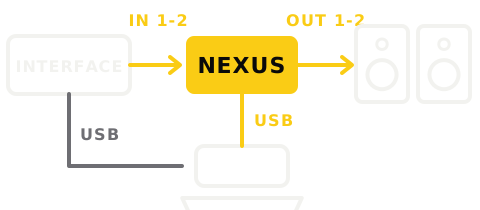
Speakers down first. Interface line outs to Input 1-2, Output 1-2 to the speakers, UAC to the computer.
 3Plug in the mic
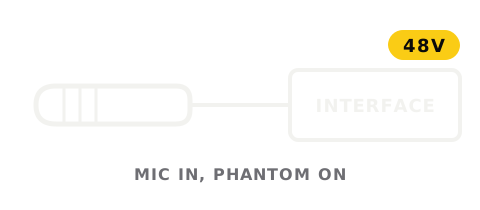
Into your interface with 48 V on, never into NEXUS. Pick it in Settings > Audio.
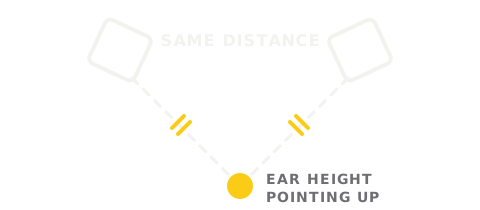 4Place the mic
Where your head goes when you listen, the same distance from each speaker.
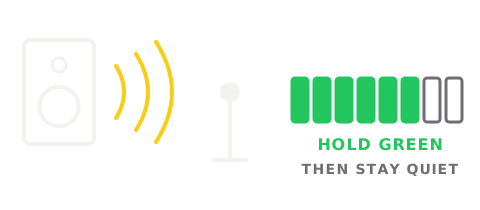 5Measure
Calibrate, Quick Measurement, Start. Raise the interface output until the meter holds green.
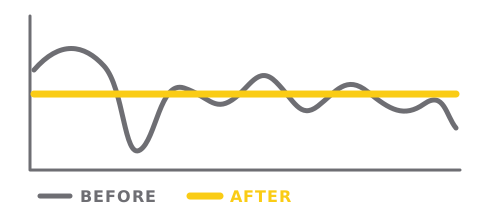 6Apply
Compare Before and After, then Apply to device. To add a sub afterwards, see Chapter 8.
1. Install Omnissiah
Download Omnissiah from tantrumaudio.co.uk/downloads/omnissiah and install it. Omnissiah measures the room and sets up NEXUS.
2. Wire everything up
- 1Turn your speakers down, or off.
- 2Connect NEXUS Output 1-2 to your left and right speakers.
- 3Connect your interface's line outputs 1 and 2 to NEXUS Input 1-2. During measurement, Omnissiah plays test noise out of the interface and into NEXUS, and the microphone records through the same interface.
- 4Plug the measurement microphone into a mic input on the interface and switch on 48 V phantom power for that input. The microphone never plugs into NEXUS.
- 5Connect the UAC port on NEXUS to your computer with the supplied USB-C cable. The one cable carries audio, control and power.
The STATUS LED on the front glows red for a few seconds while NEXUS starts, then turns white.
A fresh NEXUS sends every input to every output, so your interface also reaches Output 3. With nothing connected to Output 3, that makes no difference.
3. Check NEXUS in Omnissiah
- 1Open Omnissiah. NEXUS appears in the sidebar under Devices.
- 2If the device row shows a button Update to v…, a newer firmware is available. Turn your speakers off, click the button, then Speakers are off, update. Wait for Update Complete before you continue.
If NEXUS does not appear, see Chapter 9 — Troubleshooting.
4. Choose your interface and microphone
The first time you click Calibrate, Omnissiah shows Device Setup Required with the same settings as Settings → Audio. Set them in either place.
- 1Under Audio Interface, set Output Device to your audio interface.
- 2Turn your speakers back up to a low listening level. Press and hold the Test output button for output 1: the left speaker should play noise. Hold output 2: the right speaker should play. If the wrong speaker plays, swap the leads at NEXUS Input 1-2.
- 3Under Measurement, set Mic to your interface and choose the channel the microphone is plugged into. Speak near the microphone and watch the Mic Level meter move.
- 4If your microphone came with a calibration file, click Import… next to Mic Calibration and choose the file. Most measurement mics come with two files, 0° and 90°. The quick start points the microphone at the ceiling, so import the 90° file.
- 5If Omnissiah showed Device Setup Required, click Apply.
5. Place the microphone
Omnissiah calculates the correction for the exact spot where the microphone stands, so this step decides how good the result is. The microphone goes where your head is when you listen.
- 1Move your chair out of the way. Put the mic stand where your head would be when you sit to listen or mix. A chair back right behind the microphone reflects sound into the measurement.
- 2Centre the microphone between the speakers. Measure from the front of each speaker to the microphone. The two distances should match to within 1 cm. Omnissiah sets the delays so sound from both speakers arrives together at the microphone, so an off-centre microphone sets them for the wrong spot.
- 3Set the height to your ears. Sit in your listening position, note the height of your ears from the floor, and set the microphone capsule to that height.
- 4Point the microphone at the ceiling, straight up, to match the 90° calibration file. If you have only a 0° file, point the microphone forward instead, at a spot halfway between the two speakers.
- 5Keep it clear. Leave at least 30 cm between the microphone and the desk surface, a wall or anything else large. Keep the stand and its cable out of the straight line from each speaker to the microphone.
- 6Fix it in place. Tighten the stand. Once measuring starts, the microphone must not move until the app tells you to move it.
Before measuring, switch off fans, air conditioning and anything else that hums. Close the door. A quiet room gives a cleaner measurement in less time.
6. Set up the measurement
- 1Click Calibrate in the sidebar.
- 2Under New measurement, keep Quick Measurement selected.
- 3Under System, choose Start from: Left + Right. Check that Left Speaker uses Output 1 and Right Speaker uses Output 2.
- 4Click Start Measurement.
The Speaker Playback About to Begin dialog opens. Leave the settings inside it as they are for a first measurement: the target curve is Tantrum Flat and Quick Positions is 1.
The next step plays pink noise through your speakers. Start with the speakers or interface output turned well down. You raise the level in the next step, only as far as the meter asks.
Then click I'm Ready 🤘.
7. Set your levels
Omnissiah mutes the outputs, listens to the background noise in the room, then plays noise through the left speaker and asks you to raise it.
- 1Raise your interface output volume slowly while you watch the meter.
- 2Stop when the meter turns green and shows Level set — hold it steady. The level has to stay green for 5 seconds.
- 3Omnissiah moves on to the right speaker. The interface volume feeds both speakers, so the right speaker is usually green straight away. Leave the volume alone from here on.
- 4If the meter turns red and shows Too hot — lower your mic preamp gain, turn down the microphone gain on your interface, not the speaker level.
- 5When asked Happy with the levels in the room?, click Yes, continue.
Green means the noise is clearly louder than the background noise in the room, and loud enough at the microphone to measure well. The level is usually comfortable listening volume.
8. Measure
- 1Stay still and quiet, out of the line between the speakers and the microphone. Behind the mic stand works well.
- 2Omnissiah plays noise through each speaker in turn, a few seconds each, and records it. With Quick Positions at 1, measuring runs straight through without asking you to move the microphone.
- 3Confirm your speaker setup lists each speaker with its measured range. Click Calculate.
- 4Omnissiah shows Calculating room correction while it works out the EQ, delay and level for each output.
If a measurement keeps restarting, the room is too noisy or the level is too low. Click Restart this measurement after you have fixed the cause.
9. Review and apply
The Calibration results page opens when the calculation finishes.
- 1Click Before and After to compare each speaker's response before and after correction. The chips Ch 1 Output 1 and Ch 2 Output 2 switch between speakers.
- 2Read the Diagnostics cards. Each card explains something the correction found, such as a dip it chose not to fill, and what you can do about it.
- 3Click Apply to device. In the Apply calibration results dialog, check that Channel 1 goes to Output 1 and Channel 2 to Output 2, then click Apply to device.
Omnissiah writes the correction into NEXUS and opens the Applied Correction page: "Correction applied — it's now active on your outputs." NEXUS keeps the correction when you close Omnissiah, restart the computer or unplug it.
Hear the difference. Play some music you know well. Click Bypass all to hear your speakers without the correction, then Enable all to switch it back on.
10. Back up
Save your settings, so you can return to them after experimenting. At the bottom of the Settings page click Back up… and choose where to save the file.
What next
- Add a subwoofer: Chapter 8 — Outputs & crossovers sets the crossover on NEXUS, then you measure again with Left + Right + Subwoofer.
- Measure more positions for a correction that holds up as you move your head: Chapter 6 — Measuring & correcting.
- Switch sources between your interface, S/PDIF, USB and the aux input: Chapter 7 — Routing & sources.


